
Your backup says “successful”. Can you actually restore your files?
2026-11-14
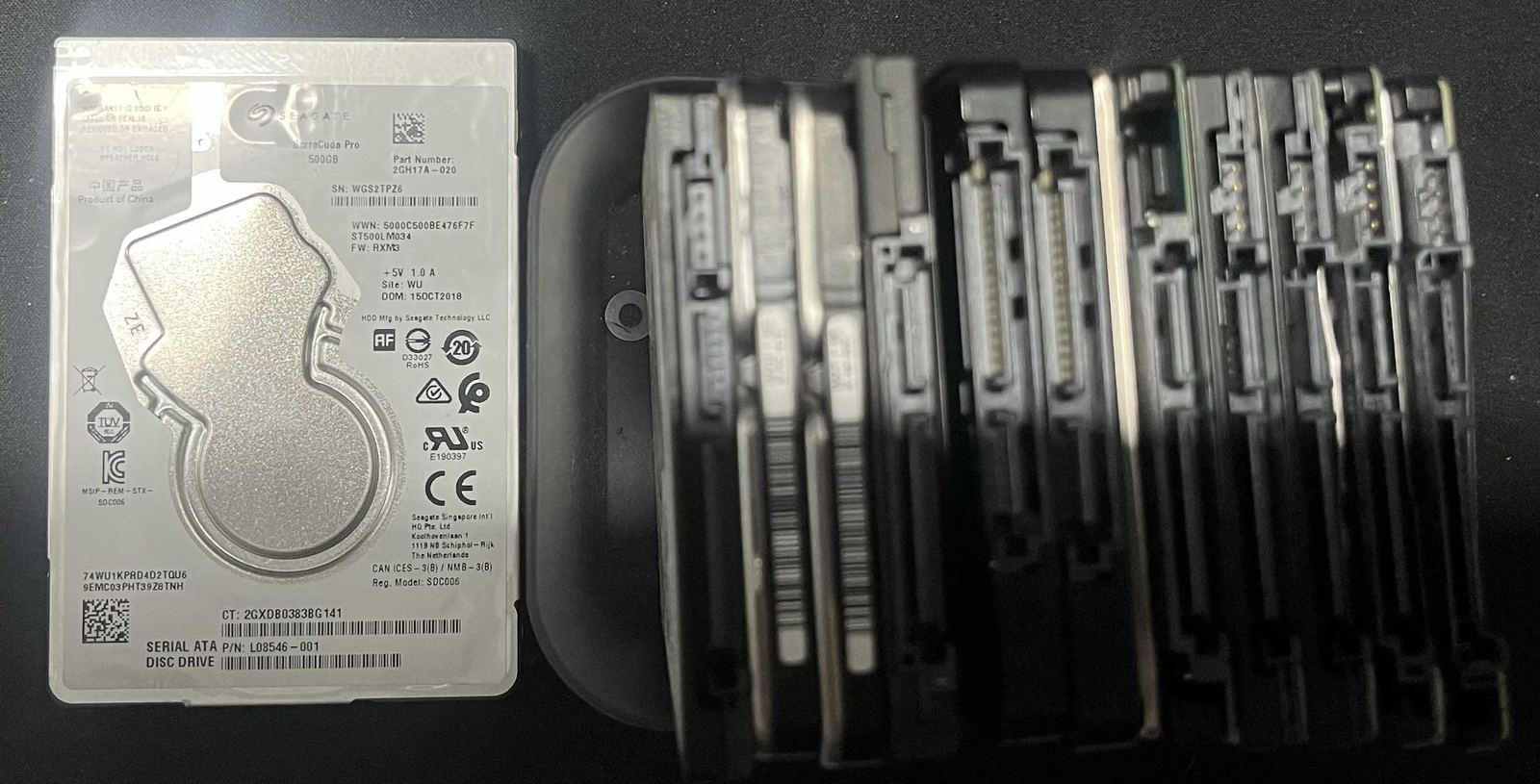
A completed backup job is a good sign. It is still worth checking that you can find the right version of a file, restore it and open it. You may discover a missing folder, an unavailable password or a recovery process that takes longer than expected.
ASD advises people and small businesses to back up important data and test their ability to restore it. Here is our practical starting point for a routine file-level check, while the original computer and files are healthy.
Pick a small, useful sample
Choose a recent document, an older document, a photo and a file from a folder you particularly care about. For a business, choose examples with the data owner’s approval and use a secure test location. Note the original file names and the versions you expect to recover.
For accounting databases, servers or specialist applications, ask the responsible administrator to plan an application-aware test. Copying a database file back into a live folder is not a safe substitute for following the application’s recovery procedure.
Restore without overwriting your working files
- Confirm a recent backup completed, then open the backup tool’s restore or recovery function. Being able to browse the original folder does not prove you are reading the backup.
- Choose the required recovery date or version. Check how far back your backup retains files rather than assuming every historical version is available.
- Restore into a separate folder or approved test environment. Keep the originals intact and avoid restoring over a synchronised working folder.
- Open the recovered files with the appropriate applications. Check text, pages, images and important details rather than relying only on file names or sizes.
- Write down the backup used, sample files, recovery date, time taken, result and any missing information. Assign a person to fix problems and repeat the failed part of the test.
Check the account and the recovery key too
A backup that depends on a password nobody knows is difficult to use. Confirm that an authorised person can obtain the required credentials, MFA method and encryption recovery information if the usual computer or administrator is unavailable. Store those details securely, separately from the only copy of the data they unlock.
For a household, make sure the person who looks after the backup can explain the steps to another trusted person. For a business, document an owner and deputy with appropriate access. Do not put passwords in a broadly shared checklist.
Understand what this test proves
A successful sample restore proves that those particular files could be recovered from that backup at that time. It does not prove every file is included, that a whole computer can be rebuilt or that the business could resume work within an hour.
Check the wider plan separately: backup coverage, retention, protection against deletion, a copy away from the original device and the time needed to recover an essential system. New Zealand’s National Cyber Security Centre backup guidance explains how backup design and testing should reflect the importance of the data and the recovery needs of the organisation.
Make the next test part of the routine
Choose a review frequency that reflects how often your files and systems change. Repeat the check after replacing a computer, changing a backup service or moving important folders. Resolve backup alerts when they appear rather than waiting for the next scheduled test.
Remove temporary restored copies when the test is complete, following your normal data-handling rules. Keep the result and follow-up actions, not unnecessary extra copies of personal or customer files.
If you suspect ransomware or another compromise, stop treating the situation as a routine test. Get incident-response help before connecting backup media or restoring into the affected environment.
Need help checking a home or small-office backup? Contact Townsville Computer Man. For recovery priorities across several systems or suppliers, Suburban Secure can help turn the technical checks into a documented plan.
Related articles

Townsville wet-season tech checklist: protect your files before the power goes out
Prepare computers, backups and essential contacts before storms interrupt power or internet. Practical steps for Townsville homes and small businesses.
Read more →
The External Drive That Held a Family's History
An external drive stopped opening with years of irreplaceable family photos and videos inside. This is how careful, block-by-block recovery brought almost all of them home.
Read more →
Could Your SD Card Be Fake? Protect Your Photos Before It Is Too Late
Fake and falsely labelled SD cards can look genuine until they are full. Here is how to reduce the risk before your photographs or videos disappear.
Read more →