
Is Your Wi-Fi Router Secure? A Simple Checklist for Townsville Homes and Businesses
2026-09-19
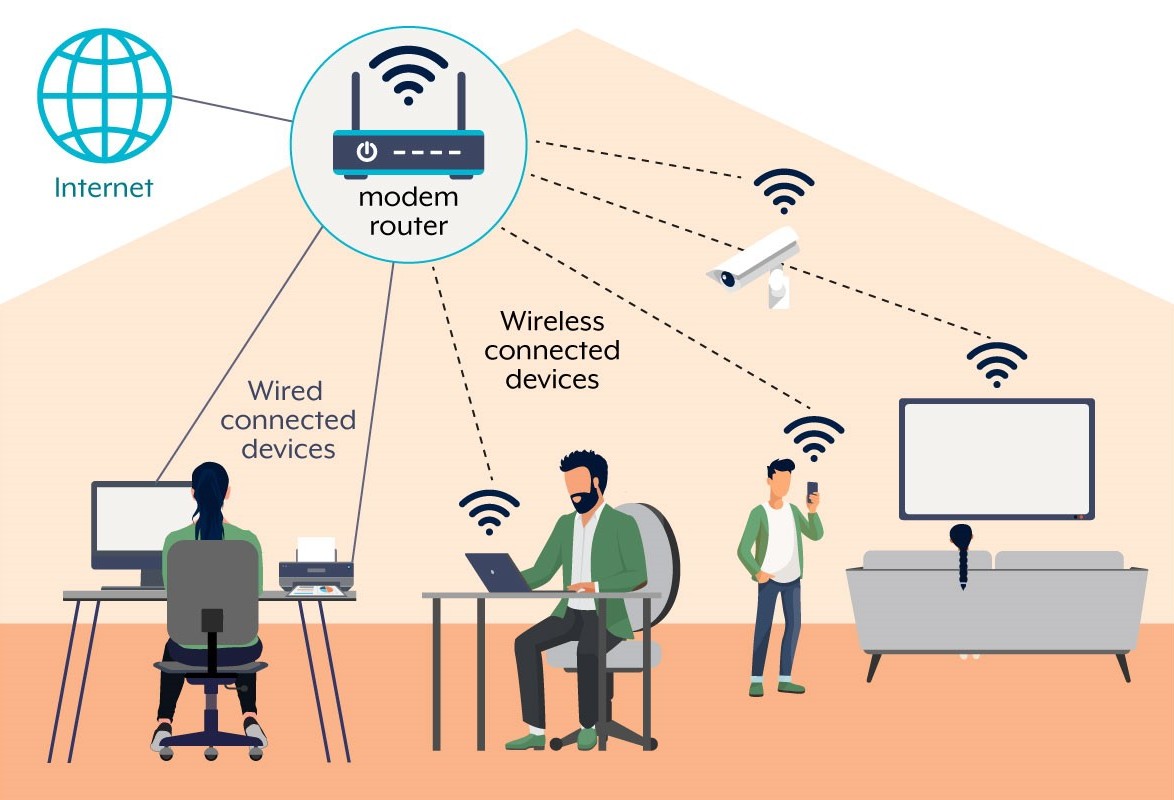
Your Wi-Fi connects the family laptops, work computer, phones, TV and perhaps the security cameras. The box keeping all of that online deserves a little attention too. A working internet connection doesn’t tell you whether your router’s software is current or its settings are secure.
The Australian Signals Directorate’s Australian Cyber Security Centre (ASD’s ACSC) has published a useful guide to securing your Wi-Fi and router. We’ve adapted its advice into a practical checklist for Townsville homes and small businesses, with our own buying advice and local support options below.
Before you start
Find the router’s brand and model on its label. While connected to your home or office network, follow the manufacturer’s instructions to open its settings in a browser or official app. The router administrator password and the Wi-Fi password do different jobs — one controls settings; the other lets devices join your network.
Have the manual and your internet provider’s details handy. Allow for a short interruption and save a configuration backup if your router offers one. If you cannot log in, check the recovery instructions or ask for help before pressing reset; a factory reset can erase your internet and phone settings.
Six checks to make your Wi-Fi safer
- Protect the settings. Replace the default administrator password with a long, unique one, and change the default administrator username if your router allows it. Save the details in a password manager.
- Update the router’s software. This is called firmware. Enable automatic updates where available, or check through the router’s update menu. For manual downloads, use only the manufacturer’s official website and the file for your exact model and hardware version. Follow its instructions and leave the power connected throughout the update.
- Check the Wi-Fi name, password and security mode. Choose a network name that doesn’t reveal your name or address, and set a long, unique Wi-Fi passphrase. Use WPA3 where supported; WPA3 transition mode can help with older devices, or use WPA2 if necessary. Avoid WEP and unsecured networks. Changing the Wi-Fi details means reconnecting your devices afterwards.
- Close off access you don’t need. Disable internet-facing remote administration and unused WPS pairing. Review UPnP and port forwarding too, switching them off if unnecessary. If an IT provider manages your network, or you rely on remote access, check with them before changing these settings.
- Check who is connected. Look through the connected-device list and identify your equipment; some legitimate devices have unfamiliar names. Investigate anything you cannot account for. If a device is unauthorised, change the Wi-Fi credentials and reconnect your trusted devices. Set up guest Wi-Fi for visitors, with access to your main local network disabled.
- Check whether the router still receives security updates. Look up the model’s support status on the manufacturer’s website. If support has ended, plan a replacement as a priority, even if the internet still works. Ask your internet provider about compatibility, including any phone service, before buying.
Buying a router? Choose a trusted Australian supplier
Our recommendation is to buy Australian-supplied routers, Wi-Fi equipment and smart devices through established Australian retailers or authorised local suppliers. Choose a manufacturer with a clear security update policy, documentation and a support team you can reach.
We recommend avoiding unknown sellers and grey-market imports on marketplaces such as Temu or AliExpress for equipment you will connect to your network. A grey import is stock sold outside the manufacturer’s authorised Australian distribution channel. With an unfamiliar seller or overseas-market model, it can be harder to verify the firmware’s origin, ongoing security support, Australian model compatibility and who will handle a warranty problem.
This includes direct imports from China or elsewhere when those details cannot be verified. Country of manufacture alone does not establish whether a device is secure. What matters is a traceable supply chain, credible software security practices and ongoing support. Buying locally still calls for checking the exact model and its support period.
ASD’s separate smart-device buying guidance also recommends reputable manufacturers and retailers, and checking for updates. The marketplace recommendation above is Townsville Computer Man’s purchasing advice.
Ask these questions before you buy
- Is this the Australian-supplied model, and will the manufacturer support it here?
- How long will it receive security updates, and can it install them automatically?
- Does it support WPA3 and an isolated guest network?
- Is it compatible with my internet connection, phone service and existing devices?
- Who handles warranty claims and technical support?
Put a reminder in your calendar
ASD recommends a router health check at least every six months. Check support status, firmware and connected devices, and restart the router when convenient. Install security updates promptly when released; the six-month reminder is a backstop. A restart alone does not fix outdated firmware or unsafe settings.
Need a hand in Townsville?
Townsville Computer Man can help review your router settings, update supported equipment, set up guest Wi-Fi and advise on a suitable replacement. Our network and Wi-Fi setup service also covers coverage problems, so we can help work out whether you need better access point placement, configuration changes or new equipment.
For local homes and small businesses, we explain the options in plain English and provide a clear quote before paid work begins. Call 07 4767 7405, contact Townsville Computer Man or request a callback. Have your router’s brand and model ready if you can.
Sources and image credit
Router checklist adapted from ASD’s ACSC guidance, with additional commentary by Townsville Computer Man. Diagram supplied by the Australian Signals Directorate. © Commonwealth of Australia 2026, licensed under Creative Commons Attribution 4.0 International. Original guidance and attribution terms are linked below. ASD does not endorse Townsville Computer Man or its services.
Related articles

New cyber security guidance: ASD Essentials
ASD Essentials builds on the Essential Eight. Our sister service, Suburban Secure, has a short introduction and links to the official guidance.
Read more →
Free AI, Cyber Security and Procurement Training for Townsville Small Businesses
The Queensland Government is funding free AI, cyber security and procurement training for small and family businesses through the University of the Sunshine Coast, plus a free standalone cyber security micro-credential through TAFE Queensland. Here's what's actually on offer and how to register interest.
Read more →
School BYOx Laptop Programs in Townsville — A Parent's Guide to Repairs
A BYOx laptop is still the student's device to look after, but the rules around device specs, insurance and school IT policy can make a simple repair more confusing than it needs to be. Here's what to check.
Read more →